Virtual Incision MIRA Teleoperation Tutorial#
This tutorial shows how to teleoperate the Virtual Incision MIRA robot in Isaac Sim using keyboard controls.
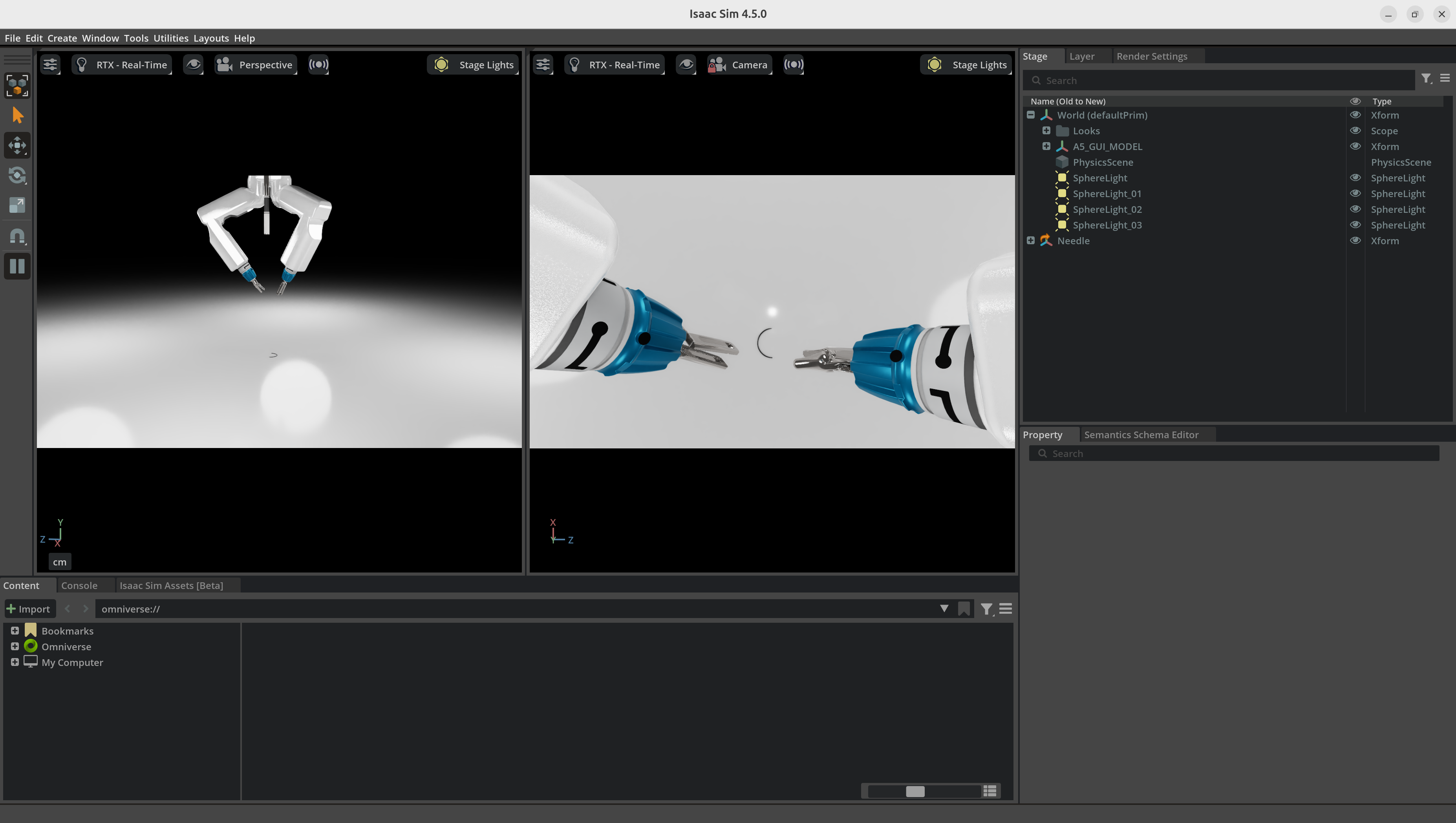
Environment Setup#
Note: The setup process takes approximately 30-40 minutes to complete, depending on your system and network connection.
This tutorial requires the following dependencies:
Please ensure these are installed.
Run the scripts#
python teleoperate_virtual_incision_mira.py
Teleoperation Methods#
Arm Joint Key Mapping#
| Key | Joint/Action | Direction/Effect |
|---|---|---|
| I | Shoulder X | + (Forward) |
| K | Shoulder X | – (Backward) |
| J | Shoulder Y | + (Left) |
| L | Shoulder Y | – (Right) |
| U | Shoulder Z | + (Up) |
| O | Shoulder Z | – (Down) |
| Z | Elbow | + (Bend) |
| X | Elbow | – (Straighten) |
| C | Wrist Roll | + (Roll CW) |
| V | Wrist Roll | – (Roll CCW) |
| B | Gripper | + (Open) |
| N | Gripper | – (Close) |
| Y | Switch Arm | Toggle Left/Right Arm |
Note: The keys control either the left or right arm, depending on which is currently selected. Press
Yto switch between arms.
Camera Group Control#
You can now control the orientation of the camera group using the arrow keys. This allows you to adjust the camera's tilt (X axis, up/down) and pan (Y axis, left/right) independently of the arm control.
| Key | Camera Axis (Local) | Direction/Effect |
|---|---|---|
| UP | X (Tilt) | + (Tilt Up) |
| DOWN | X (Tilt) | – (Tilt Down) |
| LEFT | Y (Pan) | – (Pan Left) |
| RIGHT | Y (Pan) | + (Pan Right) |
Note: UP/DOWN keys tilt the camera up/down (local X axis), LEFT/RIGHT keys pan the camera left/right (local Y axis). The camera group orientation is clamped to ±70 degrees for each axis. Camera control is independent of arm selection.
Camera Snapshot Feature#
You can save an image from the endoscopic camera by pressing the F12 key during simulation. The captured image will be saved as a PNG file in the current working directory (e.g., camera_snapshot_YYYYMMDD_HHMMSS.png).
Note: The first time you press F12 after starting or resuming the simulation, the snapshot may fail with a message like
No image data available. Make sure the simulation is running and the camera is active. This is normal, as the camera pipeline needs one frame to warm up. Simply pressF12again after a short delay to capture the image successfully.
Other control options#
For gamepad (Xbox) control of MIRA, see MIRA Gamepad Control.