Reconstruct your operating room from video#
Introduction#
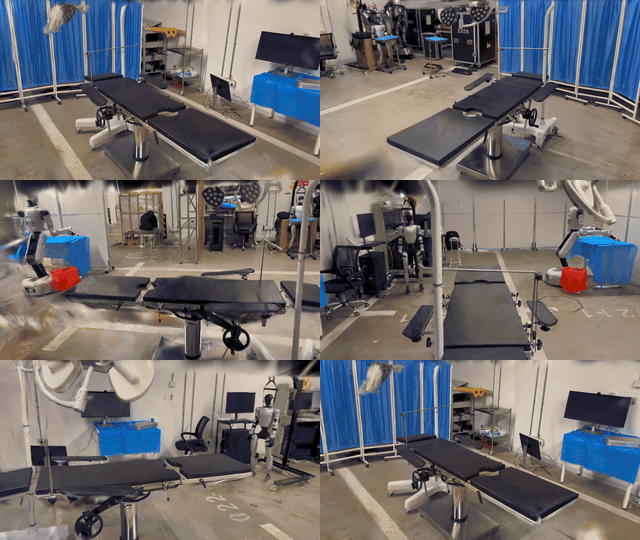
Creating realistic simulated environments traditionally requires weeks of manual 3D modeling and asset creation—a time-consuming and labor-intensive process. NVIDIA NuRec dramatically accelerates this workflow by converting real-world scenes into photorealistic 3D reconstructions that can be directly loaded into Isaac Sim.
NuRec transforms photos or videos from your smartphone into production-ready 3D assets in under 30 minutes. The pipeline leverages:
- COLMAP for structure-from-motion (SfM) to estimate camera poses and sparse 3D points
- 3DGUT for neural reconstruction using Gaussian splatting to generate dense, photorealistic geometry
The output is a USDZ file that can be loaded in Isaac Sim, enabling rapid prototyping and testing of robotic workflows in realistic environments. Developers can further enrich the reconstructed scene by adding physics properties and incorporating new assets as needed.
Dependencies#
- OS: Linux
- GPU: NVIDIA GPU with CUDA support; RTX series with Ray Tracing (RT) cores recommended
- CUDA: 11.8 or later (must match host driver and container setup)
- Python: 3.10+ for host scripts (
reconstruct.py,video_to_images.py) - Python packages (for
video_to_images.pyonly):opencv-python
Quick Start#
Step 1: Capture Real-World Scene#
You can capture your scene using either photos or videos from a smartphone camera.
Camera Settings#
For best reconstruction quality, configure your camera with these settings:
- Lock focus/exposure:
- iPhone: Long-press on the subject to enable AE/AF Lock
- Android: Tap to focus and look for a lock icon or use manual mode
- Stabilize: Use a tripod or lean against a wall—sharper frames improve COLMAP feature tracking
- Adjust exposure: Reduce exposure slightly (-0.3 to -0.7 EV) to prevent blown highlights
- Disable auto features: Turn off auto macro switching (iPhone Pro Settings → Camera → Auto Macro) or similar features that change focal length between shots
Capture Technique#
- Move slowly to avoid motion blur
- Orbit around the subject—don't pan (stand in one spot and rotate around the center)
- Capture multiple angles:
- First loop at eye level
- Second loop looking down (45° angle) to capture top surfaces
- Third loop looking up (low angle) to capture beneath overhangs
For more detailed capture guidelines, refer to the NVIDIA NuRec documentation.
Convert Videos to Images (Optional)#
If you captured a video, extract frames using the provided script:
python scripts/video_to_images.py ./videos --output ./images --fps 2
Step 2: Clone 3DGUT Repository#
Clone the 3DGUT repository and checkout to the tested commit:
cd tutorials/assets/NuRec/
git clone --recursive https://github.com/nv-tlabs/3dgrut.git
cd 3dgrut
git checkout 38664dde3b0a4a35d2baf91ebee11f3de3eae8c3
Step 3: Run the Reconstruction Pipeline#
The reconstruct.py script automates the entire pipeline: COLMAP sparse reconstruction → 3DGUT dense reconstruction → USDZ export.
python scripts/reconstruct.py --work-dir your-work-dir/
Expected work-dir structure:
your-work-dir/
  images/        # (Required) Input images or frames (extracted from video)
  colmap/        # (Script-created) COLMAP output
  out/           # (Script-created) 3dgrut outputs, including the final usdz file
You must place all your extracted or captured images in your-work-dir/images/ before running the pipeline.
What the script does:
- Runs COLMAP for structure-from-motion (feature extraction, matching, and sparse reconstruction)
- Trains the neural reconstruction model using 3DGUT
- Exports the result as a USDZ file to
your-work-dir/out/.../export_last.usdz
Visualize COLMAP Results (Optional)#
After COLMAP completes, you can visualize the sparse reconstruction:
cd /path/to/your/work-dir
colmap gui --import_path ./colmap/sparse/0 \
    --database_path ./colmap/database.db \
    --image_path ./images/
This opens the COLMAP GUI showing camera poses and sparse 3D points.
Estimated Runtime#
For a dataset of approximately 463 frames:
- COLMAP: ~10 minutes
- 3dgrut: ~20 minutes
Note: processing time increases with more frames.
Step 4: Deploy in IsaacSim#
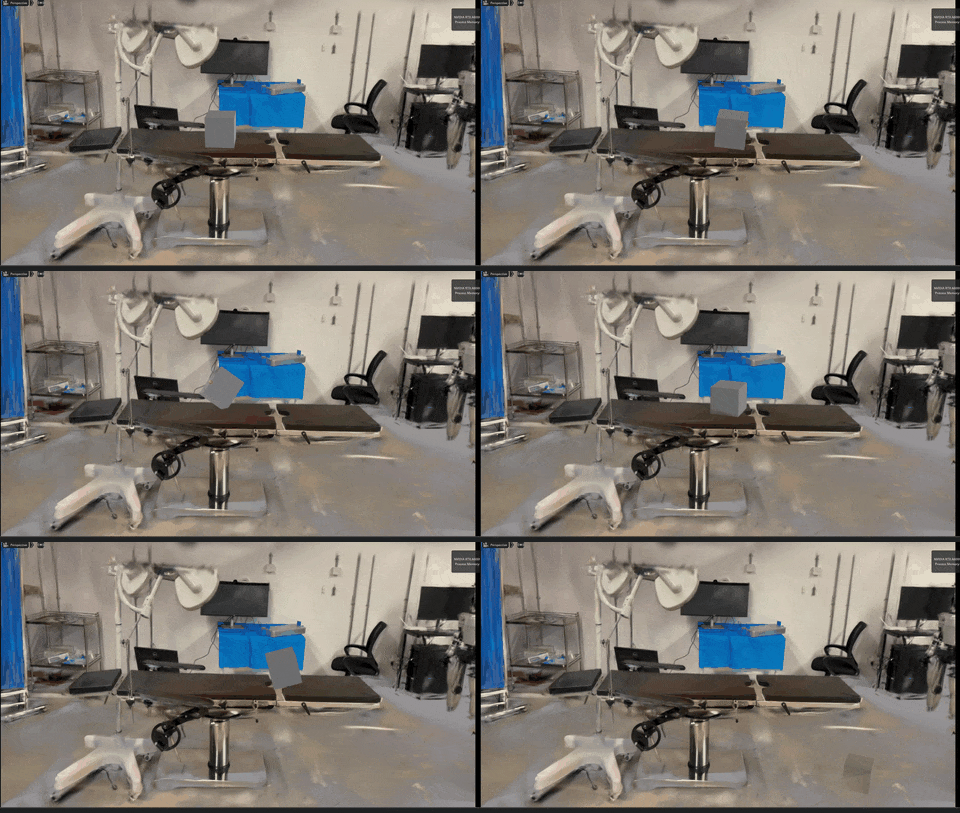
Now you can load the reconstructed scene (.usdz) into Isaac Sim as a UsdVolVolume. Since this reconstructed scene is for rendering only, it acts as a "ghost" with no physical properties; objects will simply pass through it.
To enable interactions, the developer must establish a physics layer:
-
Scene Collisions: Manually add a ground plane and simple primitive shapes (like cubes or rough bounding boxes) to match the visual boundaries of the scene (e.g., tables, walls, or crates). These meshes are then hidden (or set to "guide" purpose) to act as invisible collision proxies.
-
New Objects: To introduce new interactive elements, simply add standard USD meshes to the stage. These assets (like robots or objects) will interact with the hidden collision proxies you placed earlier.
Check out the NuRec documentation for more details.
Limitations#
The current 3DGRUT-to-USDZ pipeline generates the scene as a single UsdVolVolume primitive. The primary limitation of this format is that individual elements within the reconstruction cannot be segmented, modified, or removed; for example, you cannot selectively delete a specific piece of furniture from the scan. However, as noted in the previous section, developers can manually add hidden collision meshes and introducing new USD objects into the stage. As a result, Gaussian particles are used exclusively for high-fidelity rendering, while the hidden meshes handle the physics.
There is some ongoing research for making gaussian particle objects behave physically. For more details, refer to: Simulate Robotic Environments Faster with NVIDIA Isaac Sim and World Labs Marble.
Reference#
- COLMAP: https://github.com/colmap/colmap
- 3D Gaussian Ray Tracing (3DGRT) and 3D Gaussian Unscented Transform (3DGUT): https://github.com/nv-tlabs/3dgrut